
Start from the work the building does
Choose a purpose and receive room roles suited to that starting brief. A warehouse needs receiving and storage; a school needs teaching and study. Adapt repeated rooms to the location you want.
Give every room a reason to be there
Prepare the places your party enters: rooms, occupants, work, access and private history, gathered into one editable building dossier.
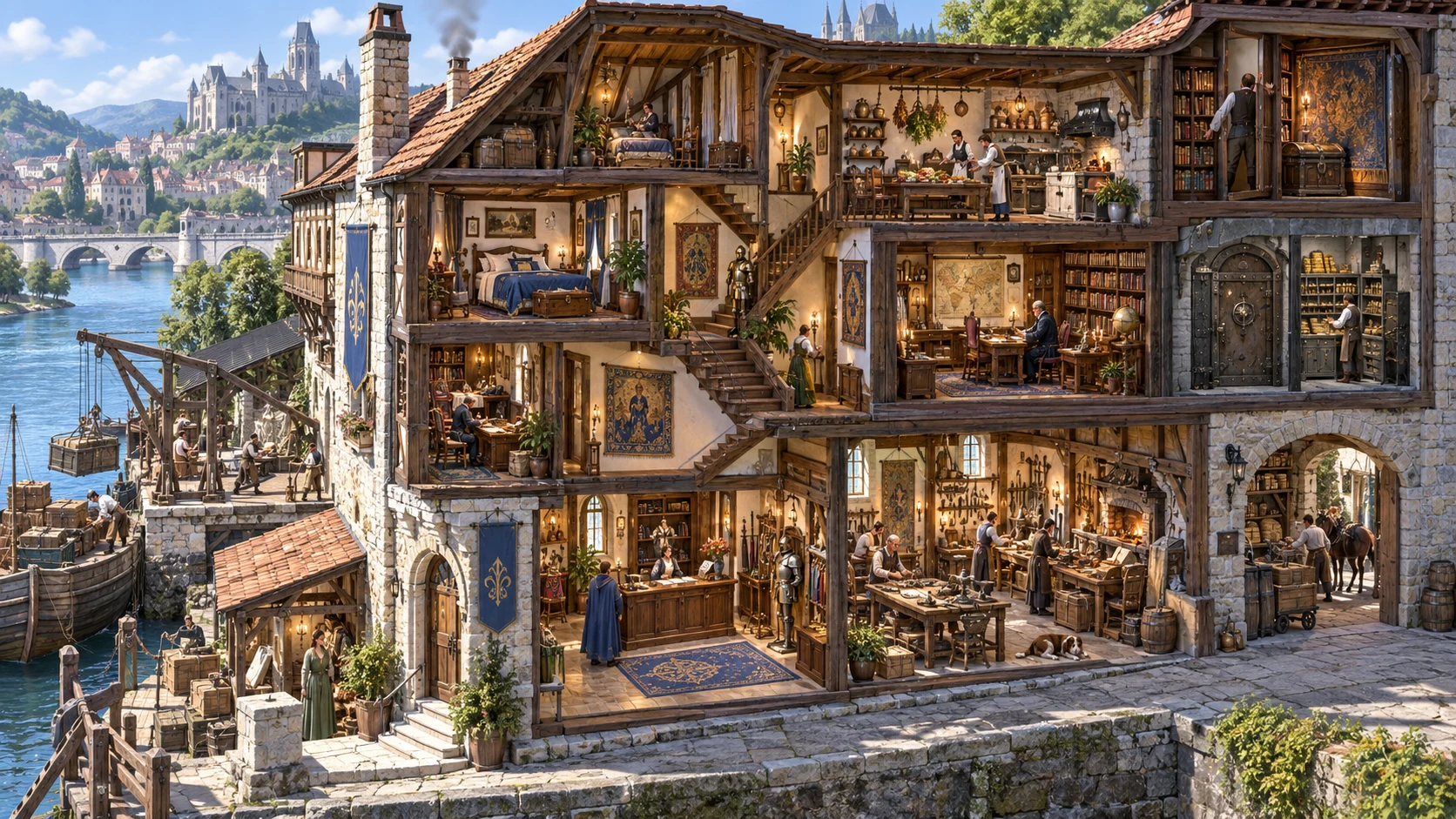
A place with a purpose
A workshop, residence or public office needs more than an address. Gather the rooms, people, access and history that make it useful in your session.
Choose a purpose and receive room roles suited to that starting brief. A warehouse needs receiving and storage; a school needs teaching and study. Adapt repeated rooms to the location you want.
Keep floor records, room descriptions, stated connections and stair notes together. Read them alongside your intended physical layout before the party starts exploring.
Review occupants, furnishings, storage, materials and wear. Use these details to answer what the party can observe, who works here and what the building has been through.
Prepare concealed areas, private valuables and DM secrets beside a player-facing description. Decide what can be discovered and what belongs in your own notes.
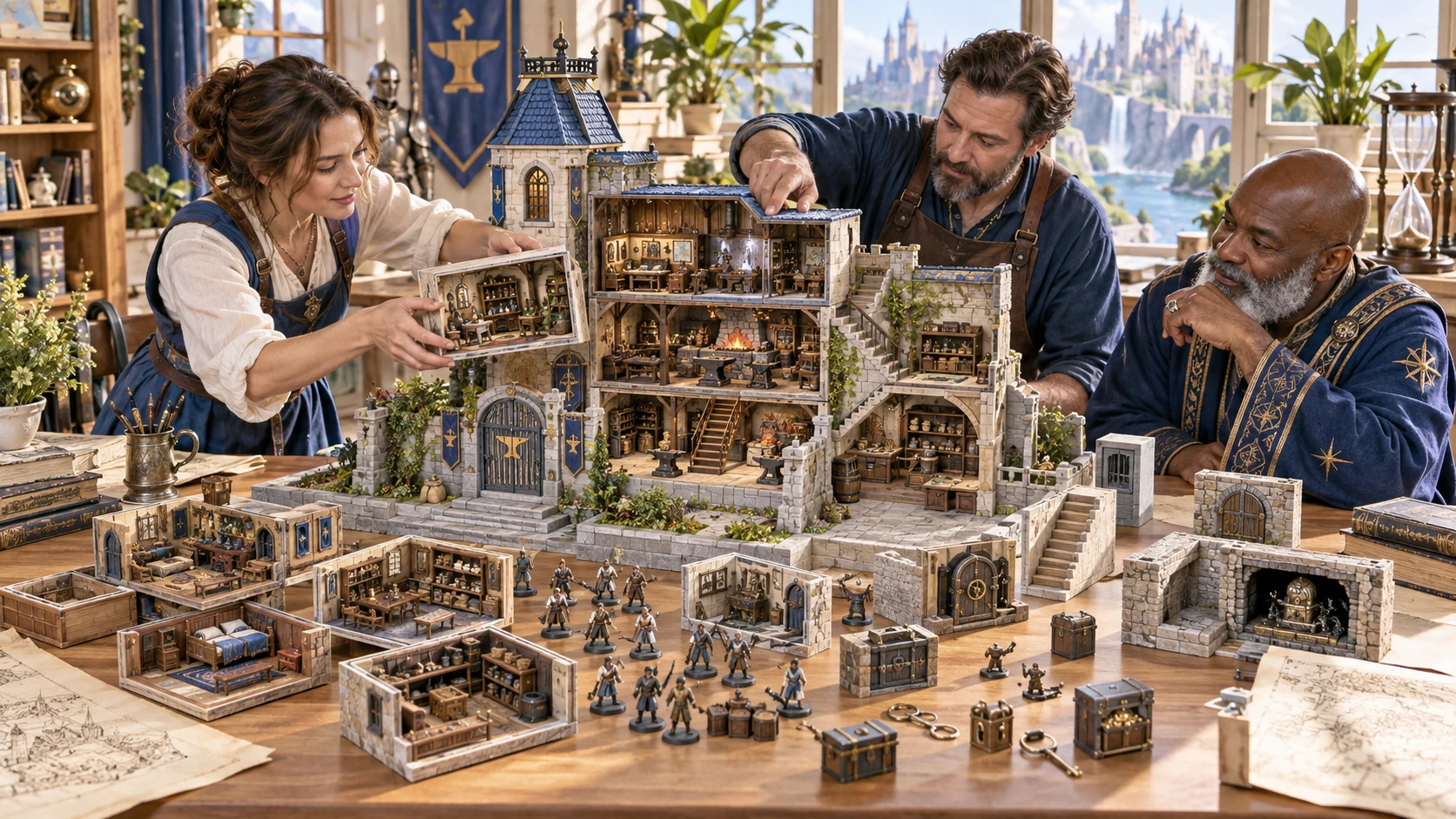
From the street to the rooms
Connect the building’s purpose with its entrance, room roles, occupants and storage. Give yourself a brief you can adapt at the table.
The dossier describes the location. Review its routes and dimensions against the map or layout you actually use.
A practical location workflow
Start with the essential brief, add the details that matter, then review the dossier before saving or sharing.
Choose building purpose, size, one to six floors, wealth, condition and settlement context. A ready-made purpose preset gives you a practical starting set of choices.
In Deep, set age, style, materials, occupancy, security, public or private access, built-in magic, hidden areas and damage. These guide descriptions rather than run live rules.
Select a floor and room. Reroll that room, lock it against an individual reroll or change its position in the room list. Edit structured JSON when you need more control.
Validate the dossier, save it to your account and read the public view before sharing. Copy or download the selected view as JSON, print it or prepare one room in Combat PRO with separate access.
What the dossier contains
Keep building and room material together while retaining the final decisions about layout, rules and what players can see.
Choose a house, manor, workshop, warehouse, school, healer, guardhouse, guildhall, farm or office. Purpose supplies a starting set of room roles for your location.
Prepare one to six floors. Size sets three to six rooms per floor, with stated room connections and stair notes. Review those descriptions against the physical layout you intend to use.
Bring occupants, furnishings, work areas, storage and valuables into your room brief. Use these as starting descriptions and adapt them to the purpose and people in your campaign.
Prepare materials, access and security notes, damage, history, unusual features, hidden areas and DM secrets. These describe the place; they do not resolve locks, checks or outcomes.
Choose a floor and room, reroll that room while other room records stay fixed or change its position in the room list. Lock a room against its individual reroll. Review current controls before generating.
Switch from the full DM dossier to a view of exterior and room descriptions. Private sections are left out. Review visible text and connection notes after editing before sharing.
Save validated building dossiers, search by name, purpose or context, reopen, duplicate and open retained earlier records. Saves keep up to ten prior building records.
With separate Combat PRO access and available capacity, prepare a saved inactive scene from one room. It carries an abstract zone, objective, occupant references and an inactive condition note.
Choose your preparation depth
Start with a focused brief or expose more choices. The generated material remains descriptive preparation for you to review.
Choose purpose, size, floors, wealth, condition and settlement context. Compact, standard, large and grand sizes supply three, four, five or six room records per floor.
Set age, architectural style, materials and occupancy. Prepare exterior and interior notes that you can adapt to the culture, people and building methods in your setting.
Choose security, public or private access and hidden-area settings. No hidden area creates none; other hidden-area choices create one private area rather than calculate different probability levels.
Add built-in magic and damage or renovation settings as descriptive context. The product does not execute spells, resolve locks or calculate whether the structure can stand.
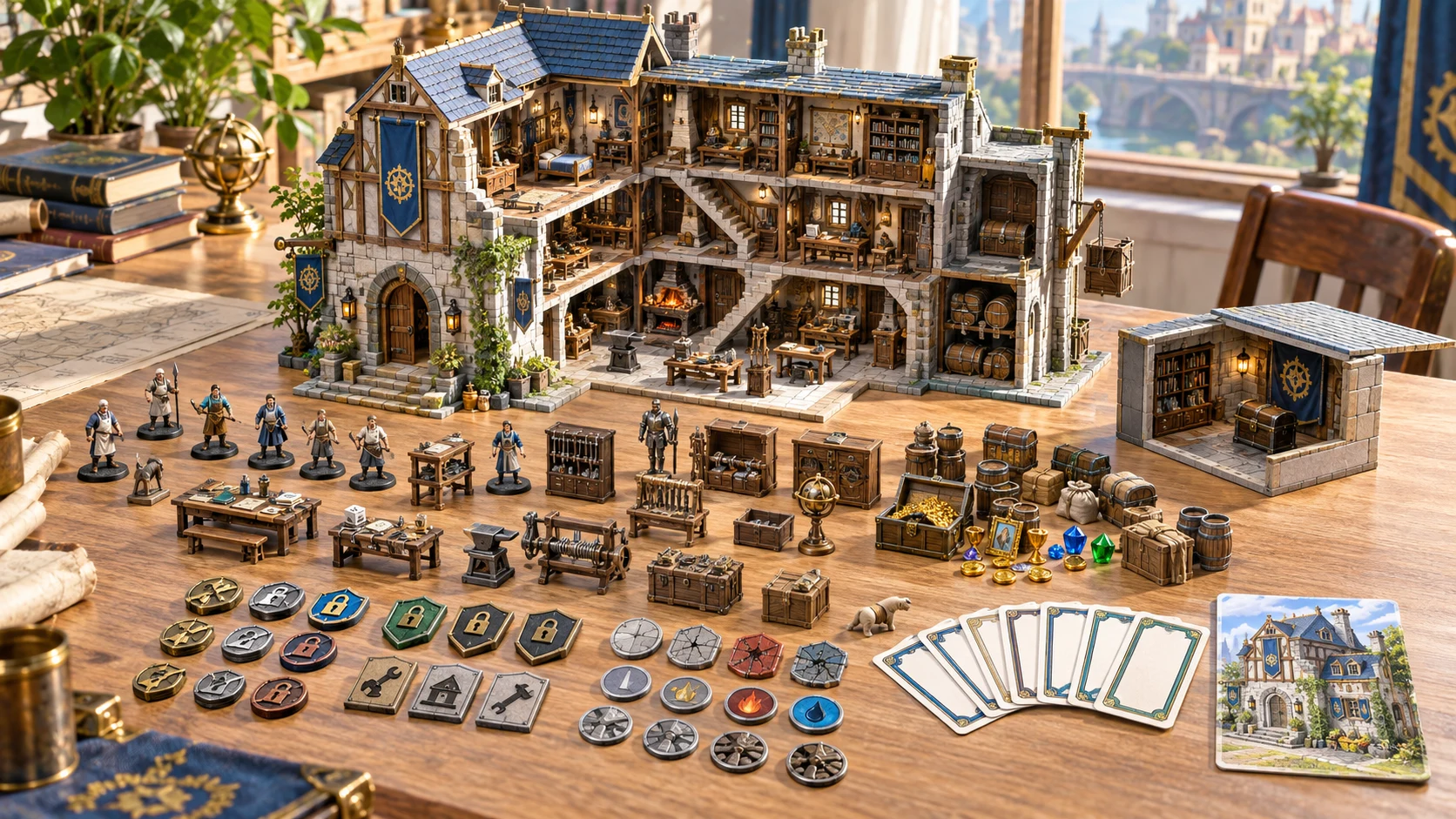
One place, two reading views
Use the complete dossier for DM preparation and the player view for exterior and room descriptions. Read the visible text before sharing.
The artwork illustrates building preparation. The generator creates structured notes, not these models, pictures or a graphical map.
Revisit useful preparation
Use targeted changes deliberately, and preserve reviewed work before broader generation.
A selected-room reroll preserves other room records and the building identity. The replacement follows your current controls, so check them after reopening a saved dossier. Room locks protect this individual action.
Empty, damaged and security variants replace room records and can discard edits, including individually locked rooms. Generate Again also rebuilds rooms. Save first and recheck both views; some summary labels can retain earlier context.
Use the structured JSON editor to change the dossier. Move a selected room up or down within its floor’s list. List order does not rewrite connection notes or create a new physical layout.
Search saved buildings by name, purpose or context. Duplicate a useful dossier or open up to ten retained prior records. Reopening a result does not restore every generation control; review the current brief before rerolling.
Clear preparation boundaries
Understand what validation checks and what remains your responsibility before sharing or preparing a connected scene.
Validation requires building sections, floors, rooms and nonempty connection notes. It does not prove that every route reaches the correct destination or that the architecture is physically feasible.
The player view leaves out private source sections. Read edited room descriptions, names and connections before copying or printing. Choose Player description first; a full DM print can include private material.
With separate access and capacity, send the selected room’s abstract zone, objective, occupant name references and an inactive visible-condition note. The saved scene does not activate a fight or transfer the whole building.
Occupant references are not complete stat blocks. Review and select statistics in Combat PRO, and adjudicate checks in your chosen rules. Repeated transfer avoids duplicates but does not update an earlier imported revision.
Choose access for your toolkit
Building & Interior Generator is a paid standalone preparation tool. Create a free account first, then review your selection and subscription.
Select Building & Interior Generator individually. Creating a free account does not by itself include paid generator access.
Use a five-generator pack for other eligible standalone tools alongside this one. It provides selection capacity, not automatic access to every VISINVOKE product.
Review larger selected-generator packs in your account. Check the actual generators, subscription and reselection terms before choosing your toolkit.
Combat PRO, Battlemaps and image systems have their own access models. Standalone generator subscriptions do not include image or animation credits.

Keep exterior, rooms, occupants, access and history in one dossier rather than collecting the location from scattered notes.
Read the player description beside your DM context. Choose the view you need for the next part of the session and retain the complete dossier for yourself.
Start Here and How Do I guidance cover purpose presets, room refinement, variants, player descriptions, account saves and optional selected-room preparation.
Adapt repeated rooms, connection notes, occupants and exact mechanics to your campaign. Structured preparation supports your decisions without guaranteeing a playable map.
Build your tabletop toolkit
Each card opens that product’s own website. Review purpose and access separately; related products do not promise included access or automatic synchronisation.
Discover and open your supported Windows products through one connected VISINVOKE account.

Explore environment packs for tactical locations and the places your encounters unfold.
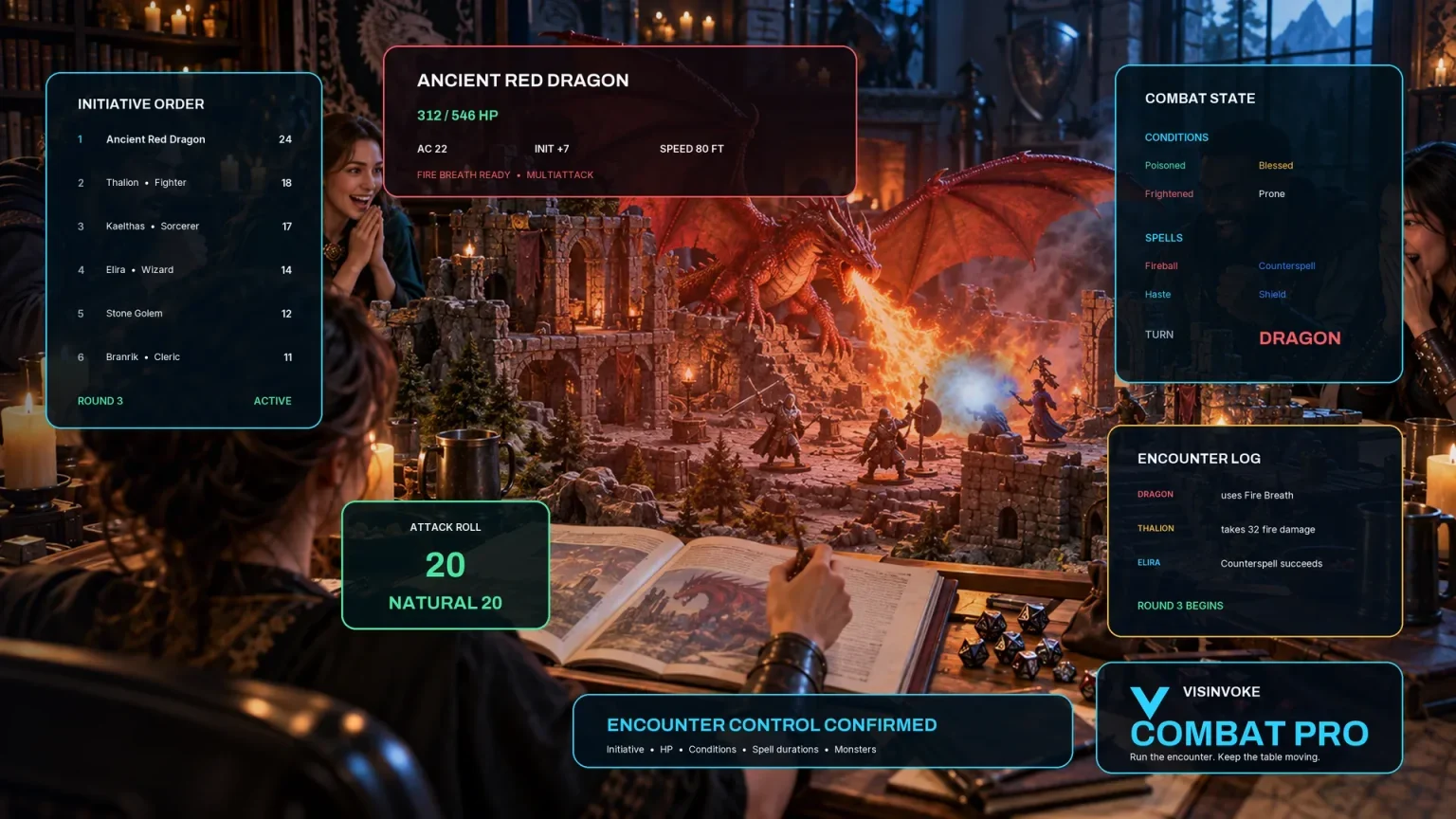
Review prepared opposition, tune creature statistics and run tabletop encounters with its own access.

Create focused character, monster, item and location images to complement your tabletop preparation.

Create guided commercial visuals for websites, brochures and wider creative projects.

Explore a separate futuristic RPG experience with its own world, characters and progression.
Product artwork illustrates location preparation, not application screens or actual generated image output.
Quick answers
Understand the workflow and its limits before opening the generator.
No. It produces a structured building dossier with floors, room descriptions and connection notes. It does not draw graphical maps, calculate dimensions or verify architectural feasibility. Review the routes against your intended layout and use a separate map when needed.
Choose houses, manors, workshops, warehouses, schools, healers, guardhouses, guildhalls, farms or offices. Prepare one to six floors. Compact, standard, large and grand sizes supply three, four, five or six rooms per floor respectively. Room roles can repeat.
No. A lock prevents that room’s individual reroll. Generate Again and empty, damaged or security variants replace room records, including individually locked rooms. Save or export useful work first, then review the resulting dossier and public view.
Yes. Select Player description before copying, downloading JSON or printing. This view excludes private source sections and shows the exterior and room descriptions. Review edited public text and connection notes yourself; the tool does not guarantee semantic redaction.
Only the selected room is prepared as a saved inactive scene: its abstract zone, objective, occupant name references and an inactive visible-condition note. No whole building, other floor, graphical map or generated combat statistics are sent. Separate access and destination capacity are required.
Create a free VISINVOKE account, select this generator at US$1.99/month or through an eligible selected-generator pack, and use Desktop Command Centre on Windows. The account library supports saved dossiers, duplicates and up to ten prior records. Combat PRO and image-credit products remain separate.
Continue in VISINVOKE
Create a free VISINVOKE account and choose the required generator access.
Get Desktop Command Centre from your account installer page. Sign in on Windows, then open Building & Interior Generator.